Demo App: Timeline Editor
animate_timeline is an interactive Windows terminal app for playing, seeking
and reversing desktop icon animations, editing movement curves, and trying
built-in or custom shaders.
Screenshots
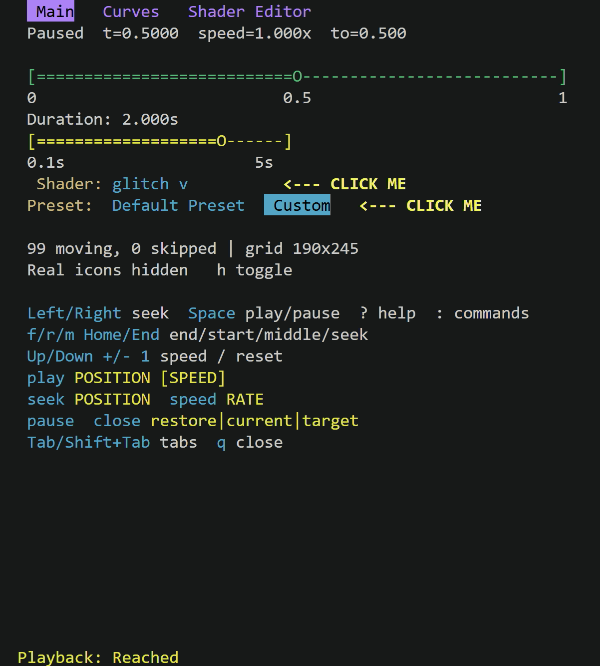
Main |
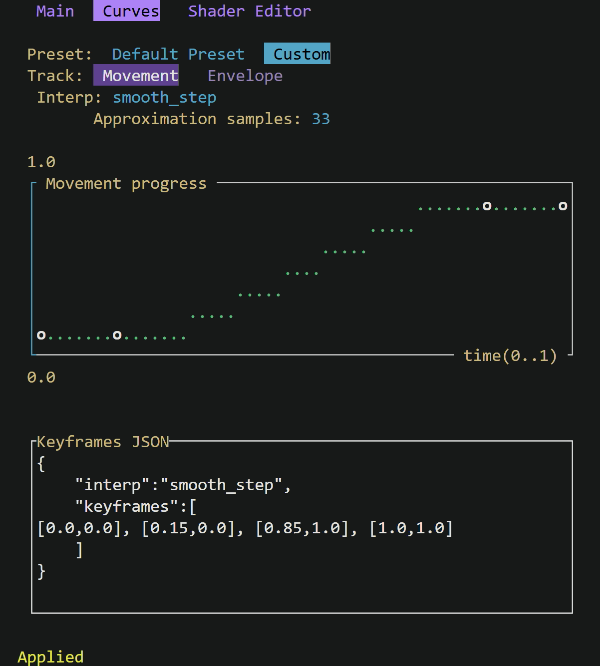
Curves |
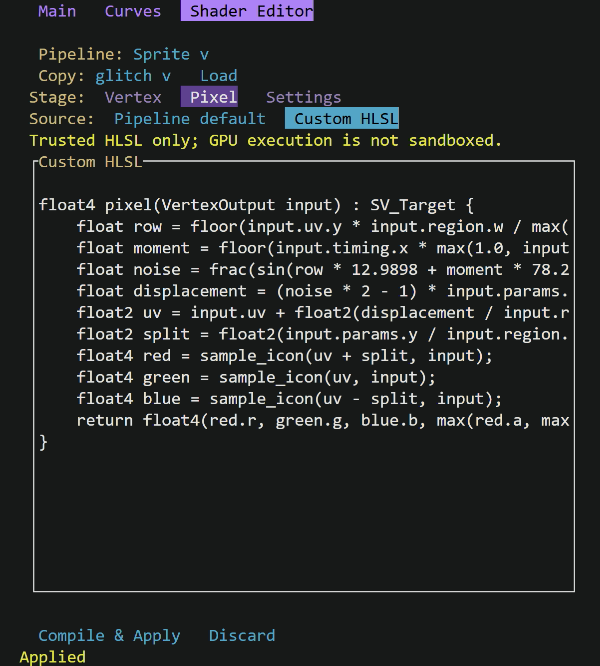
Shader Editor |
|---|---|---|
|
|
|
Install the Demo
The demo requires Windows 10/11 x64 and an interactive desktop session with Explorer. Choose either installation method below; neither requires Python.
Download from GitHub Releases
No Rust toolchain or build tools are needed for the prebuilt executable.
Open the latest GitHub release.
Under Assets, download
animate_timeline.exeto your Downloads folder.Open PowerShell and preview the animation plan without changing the desktop:
cd "$HOME\Downloads"
.\animate_timeline.exe
For this download, use .\animate_timeline.exe in place of animate_timeline
in the commands below, running them from the folder containing the executable.
Install with Cargo
Install Rust 1.88+, Visual Studio C++ Build Tools and the Windows SDK, then run:
cargo install rusty-desktop-icons --bin animate_timeline
animate_timeline
Cargo installs the executable into its bin directory, normally
%USERPROFILE%\.cargo\bin. Ensure that directory is on your PATH; reopen
PowerShell after installing Rust if the command is not found.
Launch the Demo
Preview reserved destinations without starting an overlay:
animate_timeline --dry-run
To animate, disable Explorer’s Auto arrange first, then run:
animate_timeline --shader particle-vortex
This changes the desktop and opens an overlay. Playback initially stops halfway;
f continues, r reverses, and q restores the original positions and exits.
See the lifecycle guide for cleanup semantics.
Editor Controls
The terminal must be at least 42 columns by 24 rows. Click the top tabs or
use Tab / Shift+Tab to switch Main, Curves and Shader Editor. Ctrl+C
copies when a focused field has selected text; otherwise it closes safely.
q closes when no text field or menu has focus.
Click a text field to focus it. Shift+Arrow, mouse dragging or Shift-click
selects text; Ctrl+A selects the entire field. Ctrl+C copies to the Windows
clipboard, and Ctrl+V pastes over the selection or at the cursor. Unicode
and multiline text are supported, including terminal-delivered bracketed paste.
Read-only shader defaults allow selection, copying and navigation, but not
editing or pasting. Clipboard failures leave the draft and selection intact.
These shortcuts edit drafts only; Save or Compile & Apply still commits them.
Terminal-reserved shortcuts must be configured to reach the app.
Clicked buttons and toggles show a muted amber tone before their action runs, then return to their normal selected/unselected colors when it finishes. Compilation and rebuilding remain synchronous; errors preserve the saved configuration and clear the intermediate tone.
Main: sliders seek and set full-traversal duration (0.1 to 5 seconds).
Spacepauses/resumes,htoggles real icons,?toggles help, and:opens manual commands. Speed is limited to 50x. Selecting a different built-in applies its preset duration, including Silk Flow’s five seconds. Subsequent duration changes are independent. Curve edits and Custom shader selection preserve the current duration, position and direction.Curves: Default Preset is read-only. Custom creates or selects the single saved movement/envelope pair. Switching shaders never overwrites that pair. Select Movement or Envelope to show one graph and JSON field. To replace the pair from another preset, switch to Default, choose From, then Create/Replace. Keyframes are copied exactly; other easing curves are approximated by uniformly sampled linear keyframes using the selected sample count.
Graph: a marker selects all keyframes occupying its terminal cell. Gray is unselected, blue selected, yellow 2-4 coincident keys, orange 5+, and white a pending edit. Arrow keys move the selection; Shift uses a finer step. Time ordering and endpoint times are protected, endpoints cannot be deleted, and envelopes stay within 0..1. Movement can overshoot; clicking the left graph border cycles the Y range, whose limits appear above and below that border. Time (0..1) is labeled on the bottom-right border. A blank row separates the controls from the upper range label, and the left axis has square corners. Empty graph space creates a pending keyframe; Enter accepts it, Esc or a click elsewhere discards it. Numeric fields display three decimals without rounding stored data. Enter accepts a numeric field; Save commits the curve.
Curve JSON: includes
interp(linear,step,smooth_step) andkeyframespairs[time,value]. The object and outer array use separate lines; all compact keyframe pairs share one line, separated by comma-space. Shader settings retain their pretty formatting. Only Save JSON commits. Enter inserts a newline, Esc or clicking outside discards the text draft. Validation errors retain the draft. Save/Discard also controls graph and interpolation edits.Shader Editor: choose a pipeline and copy a built-in with confirmation. Vertex and Pixel each have a Source choice: Pipeline default or Custom HLSL. Pipeline default shows the compiler’s default entry point read-only; its helper comes from the selected pipeline, not the copied built-in. Custom HLSL restores that stage’s editable draft. Switching source or stage preserves custom text and does not apply changes. Settings has no Source selector. Settings JSON includes four params, padding, seed, typed parameter schemas, targets, passes, draw settings and artwork requests. Copying Silk Flow preserves its complete recipe. Explicit per-pass shader sources in procedural recipes retain precedence over these stage defaults. Compile & Apply validates the whole draft and replaces the single saved custom shader only on success. Compilation errors retain the draft and previous live shader. Discard restores the saved shader or selected template.
Editing pauses playback. Drafts do not change live specs. Save rebuilds at the same normalized position after restoring and verifying origins, with recovery to the previous configuration if preparation fails. Rebuilding can briefly reveal Explorer. Custom configurations live only for this process.
Only paste trusted HLSL. Shader compilation and GPU execution are not a sandbox. Enter inserts newlines in source editors; Tab always changes main tabs.
For write-free previews, use the off-screen example.